How to put your Strava stats on a video
Strava holds the numbers, but its share tools only add static stats to photos. GaugeReel reads your activity and renders animated speed, heart rate and route gauges that move with your footage, ready to drop into any editor.
Windows + macOS · No watermark · Import from Strava needs Basic
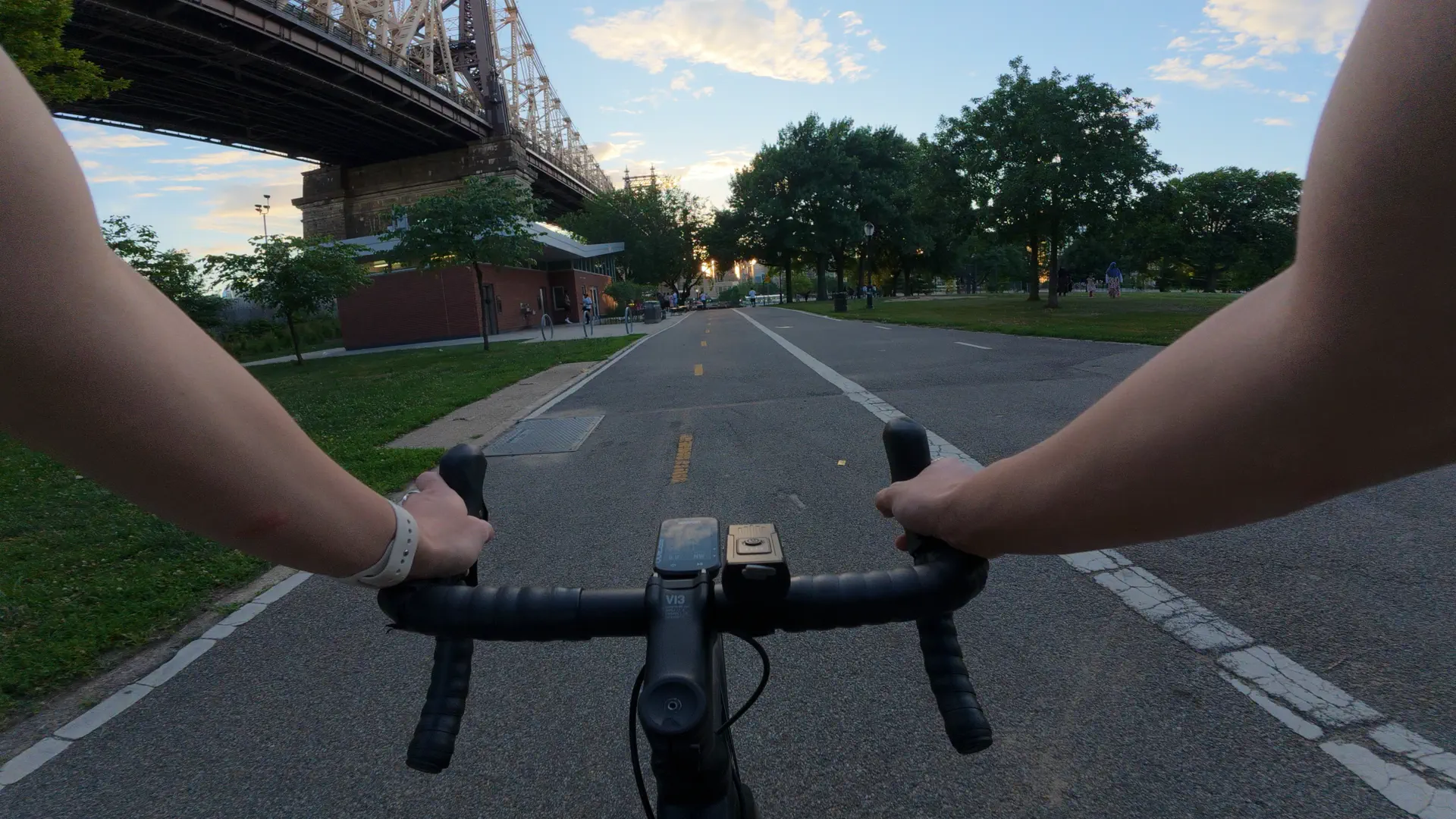
How do I put Strava stats on a video?
Download the activity from Strava as a file, add that file and your video to GaugeReel, line the two up, and export. GaugeReel is a free Windows and macOS app that turns the activity’s speed, heart rate, power, cadence, elevation and route into animated gauges that move with your footage. With a Basic plan you can skip the file and import the ride straight from your Strava account.
Export the activity from Strava. On strava.com, open the activity, click the “…” menu and choose Export Original (or Export GPX).
Add your video and the file. In GaugeReel, open your clip and choose Add GPX / FIT / GoPro MP4 in the data panel, then pick the file you downloaded.
Choose gauges and sync them. Add speed, heart rate, route map or other gauges, then use Sync offset to line the numbers up with a moment you can see in the video.
Export the overlay. Export a transparent overlay to place over your footage in any video editor. On Basic and Premium you can export a finished MP4 with the gauges burned in.
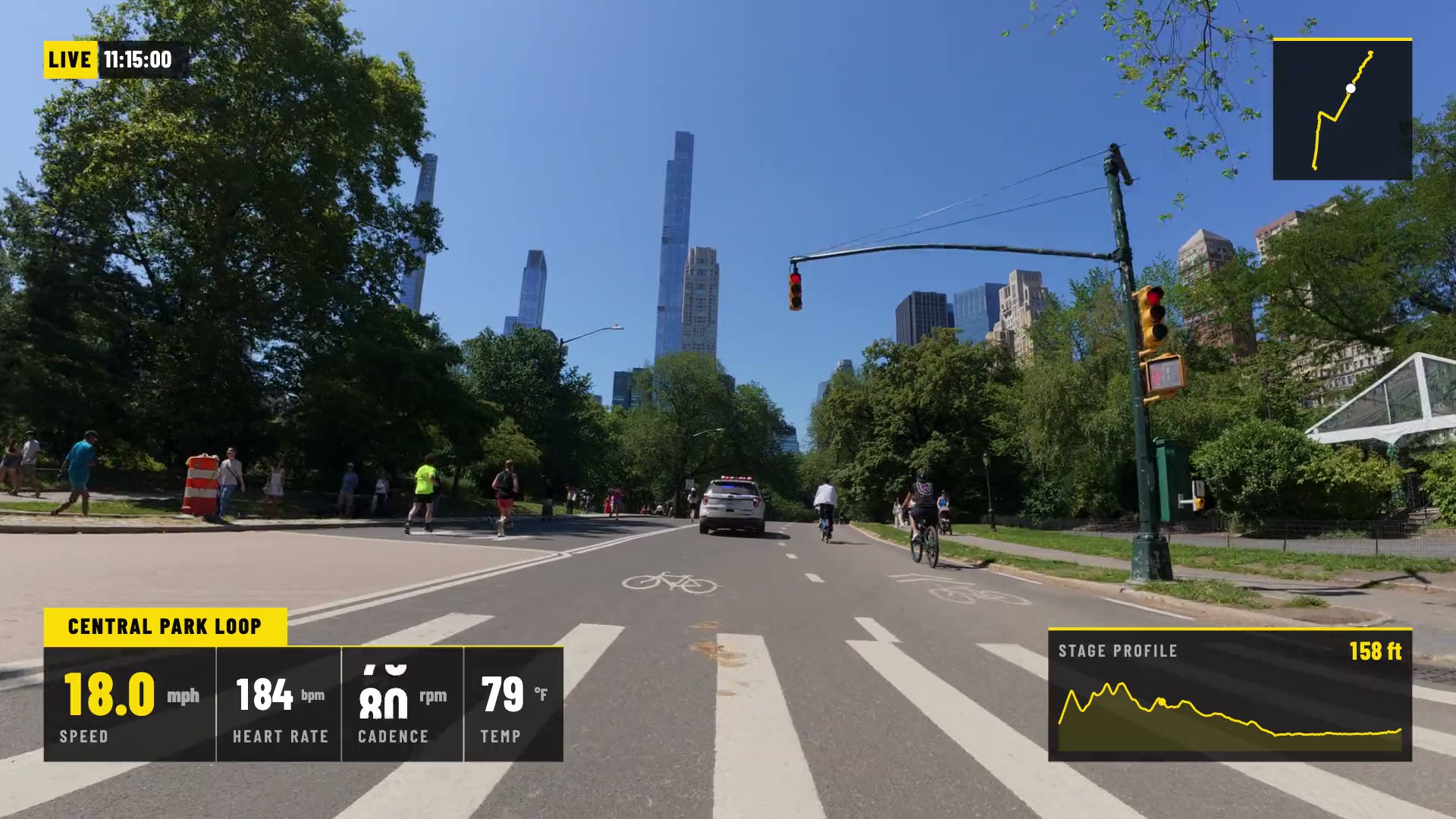
Export a file or connect Strava?
Both end in the same place: your activity’s numbers drive the gauges, synced to your footage.
Export your activity file
FreeDownload the GPX or FIT from strava.com, then add it to GaugeReel.
Works on every plan, no account, no connection to Strava.
See the stepsImport from Strava
BasicConnect Strava once, then pick the ride or run inside GaugeReel.
No files to find. The activity is matched to your clip and saved to your account.
See the stepsHow to export a Strava activity for your video
This works on every GaugeReel plan and doesn’t connect GaugeReel to your Strava account.
- Open strava.com in a browser on a computer and go to the activity you filmed. Strava’s export menu is on the website, not in its phone app.
- Open the “…” menu and choose Export Original to download the file as it was uploaded. If that option isn’t offered, or the file is a TCX, choose Export GPX instead. Unzip the download if it came zipped.
- In GaugeReel, open your video as the reference clip and choose Add GPX / FIT / GoPro MP4 in the data panel, then pick the file. A GoPro that recorded its own GPS can use its MP4 for the route and the Strava file for heart rate or power.
- Add gauges such as speed, heart rate and elevation, and check each gauge’s Source.
- Line up the data using the source’s Sync offset. Pick a moment you can see, such as pulling away from a stop, and check a second moment near the end of the clip.
- Export. Free gives you a transparent PNG sequence or a green-screen MP4 up to 1920 × 1080 to place on a track above your footage in DaVinci Resolve, Premiere Pro, Final Cut Pro or iMovie. Basic and Premium can burn the gauges into the video itself.
Want a sample first? The beginner guide has a synthetic ride file you can try before using your own.
How to import a Strava activity directly
Link your account once and skip the export. The link is shared between the desktop app and your GaugeReel account.
- In the desktop app, choose From Strava on the start screen, or open Settings → Connections, and click Connect with Strava. You can also link it from Account on this site.
- Sign in on Strava’s own page and allow read access. GaugeReel never sees your Strava password.
- Pick the activity that goes with your video. You can search by name, paste a Strava activity link, or filter by sport, date, distance and what the activity recorded, such as heart rate, power or cadence.
- GaugeReel syncs the activity to your clip and saves a reference to it on your account, so it’s there on every device you sign in on. The numbers are fetched from Strava when you open the project.
- Turn on Suggest a match when I add a clip in Connections and GaugeReel looks for the Strava activity from the same time as your clip and offers it.
Only your own activities
Strava limits an activity’s data to the athlete it belongs to, so you can import your own rides and runs but not someone else’s.
Unlink whenever you like
Unlinking in one place unlinks Strava everywhere you’re signed in. Compare plans to see what Basic adds.
Powered by Strava. Strava is a trademark of Strava, Inc. GaugeReel is not affiliated with or endorsed by Strava.
What Strava stats can go on a video?
GaugeReel can only show what your device recorded. Whatever Strava has for the activity is what the gauges can use.
| Gauge | Needs | Note |
|---|---|---|
| Speed or pace | GPS or a speed sensor | Pace for runs, speed for rides. |
| Heart rate | A heart-rate strap or watch | Only appears if a sensor was recording. |
| Power and cadence | A power meter or cadence sensor | Bike computers and some watches record these. |
| Elevation and gradient | GPS or a barometer | Taken from the altitude Strava has for the activity. |
| Route map | A GPS track | The route map is a Basic gauge. |
Importing from Strava doesn’t bring in laps. If you need lap gauges, use the exported original file from your device instead. See every gauge on the features page.
Questions and troubleshooting
How do I put Strava stats on a video?
Download your activity from strava.com as a GPX or FIT file (open the activity, use the “…” menu, choose Export Original or Export GPX), add it to GaugeReel next to your video, pick gauges such as speed, heart rate and route map, line them up with the footage using Sync offset, and export. GaugeReel is a free desktop app for Windows and macOS. With a Basic plan you can import the activity straight from Strava instead of exporting a file.
Is there an app that overlays Strava data on video?
Yes. GaugeReel reads the speed, pace, heart rate, power, cadence, elevation and route from your Strava activity and draws animated gauges that move with your footage. Strava’s own share tools add static stats and maps to photos, not numbers that change along with a video.
Can I put Strava stats on a video for free?
Yes. Export the activity from strava.com as a GPX or FIT file and import it into GaugeReel. The Free plan includes speed, heart rate and other core gauges, has no watermark, and exports a transparent PNG sequence or a green-screen MP4 up to 1920 × 1080 that you place over your footage in any editor.
Can I add Strava speed, heart rate or a route map to a GoPro, phone or drone video?
Yes. The numbers come from the Strava activity, not the camera, so any footage you recorded during the activity works, whether it came from a GoPro, a DJI camera, an Insta360 (reframe and export the view first) or a phone. Match the clip to the activity by time and use Sync offset to fine-tune it.
Can I make a vertical video with Strava stats for Instagram Reels, TikTok or YouTube Shorts?
Yes. GaugeReel exports vertical as well as landscape. On Free you get a transparent overlay to place over your clip in the editor you already use; on Basic and Premium you can export a finished MP4 with the gauges burned in, then upload it anywhere.
Do I need Strava to be connected to GaugeReel?
No. Importing a file you downloaded from Strava needs no connection. Connecting your Strava account is an optional Basic feature that saves you the export step and lets GaugeReel suggest the activity that matches your clip.
Which Strava export should I use, GPX or Original?
Try Export Original first. It gives you the file exactly as it was uploaded from your device, which is usually a FIT or GPX file. GaugeReel reads GPX and FIT, so if the original turns out to be another format such as TCX, go back and choose Export GPX instead. Either way, a field only shows up if it was recorded. For an indoor or trainer activity with no GPS, the GPX export can come out empty, so use Export Original.
Why can I only export from the Strava website?
Strava puts the Export GPX and Export Original options in the “…” menu of an activity on strava.com, not in its phone app. Open the activity on strava.com from a computer, use the “…” menu and choose the export. You can only export your own activities.
Can I use someone else’s Strava activity?
No. Strava only allows an activity’s data to be shown to the athlete it belongs to, so GaugeReel imports your own activities. If you paste a link to an activity that is not yours, GaugeReel tells you it can’t be imported.
Does GaugeReel upload my video or my Strava data?
Your video stays on your computer. A file you exported from Strava is read on your computer too. The optional Basic import signs in through Strava’s own page and saves a reference to the activity on your GaugeReel account, so you can reopen it on any device, rather than a copy of your numbers.
Does GaugeReel get my Strava password?
No. Connecting sends you to Strava’s own sign-in page, where you allow read access. You can unlink from Account in GaugeReel at any time, or revoke access from Strava’s settings.
Why is heart rate, power or cadence missing from my video?
Strava only holds what the device recorded. If your watch was not paired to a heart-rate strap, or you had no power meter, the activity has no values for those gauges and neither does the overlay. Importing a different file cannot add measurements that were never recorded.
My Strava activity came from a watch or a phone app. Will it work?
Yes, as long as it has a recorded GPS track and the activity is on Strava. That covers Garmin, Wahoo, COROS, Apple Watch and phone apps that sync to Strava.
How do the Strava stats line up with my video?
GaugeReel matches the activity’s clock to your clip’s timestamp, then you fine-tune the Sync offset against a moment you can see, such as rolling away from a stop. Check a second moment near the end of the clip.
Filming with a particular camera? See the GoPro, DJI, Insta360 and Garmin guides. A file that won’t import: zoniixyt@gmail.com.
Try it on one Strava ride.
Export a ride from Strava, add it next to a short clip, and check the timing at the start and end before you build a full edit.