Put Apple Watch workout stats
on your video
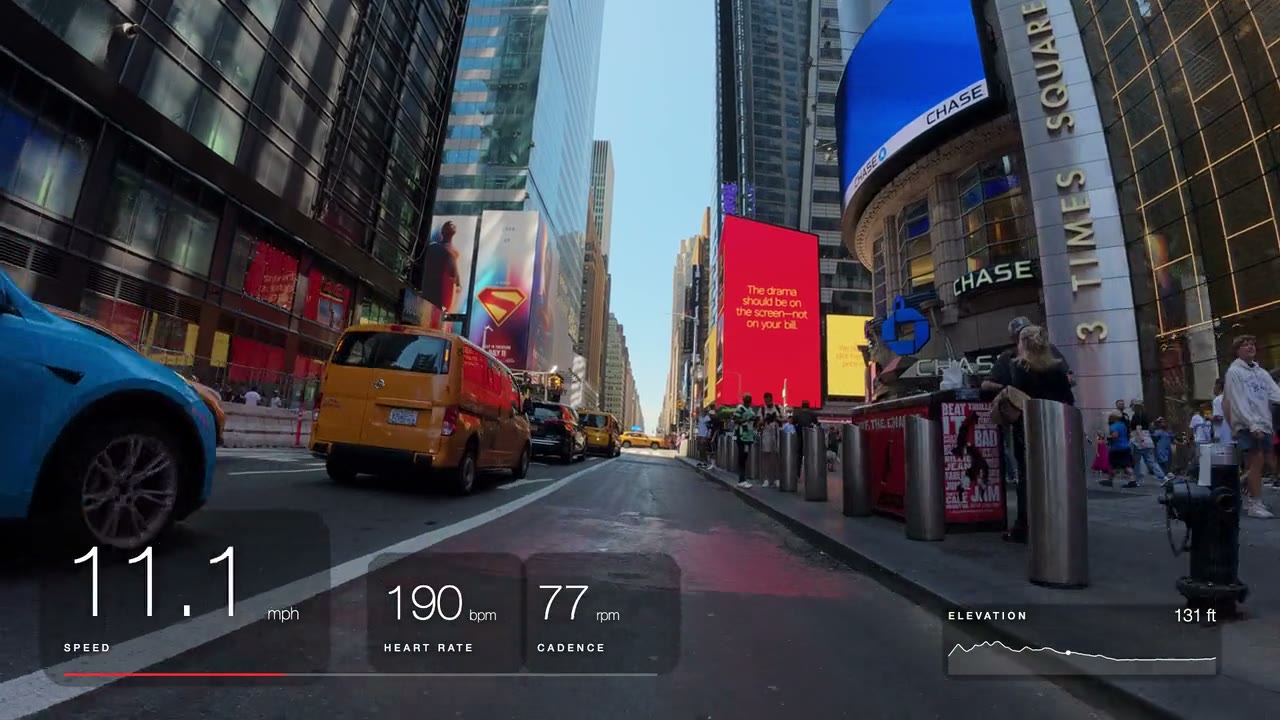
Get the workout file out through Strava or a Health export app, then GaugeReel draws your heart rate, pace and route over the footage.
Mac & Windows · Free plan, no watermark · No account needed
What an Apple Watch workout gives you
- Heart rate· from a watch, bike computer or phone file
- Speed, pace, distance (outdoor)· from a watch, bike computer or phone file
- Route line (maps on Basic)· from a watch, bike computer or phone file
- Altitude & climbing· from a watch, bike computer or phone file
- Cadence (if exported)· from a watch, bike computer or phone file
- Direct Apple Health link· not supported
- 1
Export the workout
Sync it to Strava and export it on strava.com (or import it straight from Strava on Basic), or export a FIT from a Health export app.
- 2
Import it with your video
Add the file and your clip from an iPhone, GoPro, DJI or Insta360 on your Mac or Windows PC.
- 3
Line it up and export
Slide the offset until the numbers match the action, pick a look, and export a layer for your editor.
Every gauge and plan limit is on the features page. New to this? The beginner guide covers finishing the video in CapCut, Clipchamp, DaVinci Resolve, Final Cut Pro or Premiere Pro.
From your wrist to gauges on video
Why you need an export step
Apple keeps workouts inside the Health app and offers no button to save one workout as a file. GaugeReel needs that file, so the first step is getting it out. Two ways work well: Strava (connect it to Apple Health once, then every workout syncs, and strava.com can export it as GPX or as the original file) and Health export apps such as HealthFit, which save a workout as a FIT file you can AirDrop to your Mac. On Basic you can skip the export and import the workout straight from Strava. See how to put Strava stats on a video for both routes.
Heart rate, pace and route
Heart rate works for any workout. Speed, pace, distance and the route need an outdoor workout with GPS. Heart rate, speed, cadence, altitude and a plain GPS route line are on Free; map basemaps, compass and 3D routes need Basic or above.
Syncing and finishing
Your iPhone and watch clocks are usually close, but still check: move the offset until the numbers match a visible stop or start. Then place the gauge layer above your footage in your editor, or burn it into a finished video on Basic. The beginner guide covers CapCut, Clipchamp, DaVinci Resolve and Premiere Pro.
Apple Watch and Apple Health are trademarks of Apple Inc. GaugeReel is an independent desktop app from gaugereel.net and is not affiliated with Apple or Strava.
Ways to get the file
Any route that ends in a recorded FIT or GPX file with timestamps works.
- Strava export (any plan)
- Strava import (Basic)
- HealthFit (FIT export)
- Other Apple Health export apps
Words you'll see, in plain English
- Workout file
- A FIT or GPX file holding your workout’s readings second by second, with timestamps.
- FIT
- The activity format sports devices use. Keeps heart rate and other sensor data.
- GPX
- A GPS track file. Good for speed and route; some exporters leave heart rate out.
- Offset
- How many seconds the data is shifted so the numbers match what happens on screen.
- Transparent layer
- A video of just the gauges with an invisible background, placed on a track above your footage.
- Chroma key
- Gauges on a flat green background. Your editor removes the green, like a weather-forecast screen.
Apple Watch questions
How do I get a workout file off my Apple Watch?
Apple’s Fitness and Health apps have no per-workout file export. The simplest route is Strava: let the workout sync to Strava, open it on strava.com, open the “…” menu and choose Export GPX or Export Original. On Basic, GaugeReel can import the synced workout straight from Strava instead. Third-party iPhone apps that read Apple Health, such as HealthFit, can also export a workout as a FIT file.
Will my heart rate come through?
Only if it is in the exported file. Check the file before you start: if a GPX from Strava has no heart rate, try Export Original or a FIT exported by a Health export app, which keeps heart rate when the watch recorded it.
Can I put Apple Watch stats on an iPhone video?
Yes. GaugeReel runs on a Mac or Windows PC. Copy the iPhone clip and the workout file to the computer, import both, line them up and export. To share on Instagram, export a vertical 1080 × 1920 layer and combine it with the clip in CapCut.
Does GaugeReel read Apple Health directly?
No. GaugeReel never connects to Apple Health or iCloud. Export the workout file yourself and import it; the file is read on your computer. On Basic you can skip the export by connecting Strava and importing the synced workout from there.
Which Apple Watch workouts work?
Outdoor workouts with GPS, such as outdoor runs, walks, hikes and rides, give speed, pace, distance and route. Indoor workouts have no GPS, so only heart rate and other sensor values can be shown.
What is a FIT file?
A FIT file (Flexible and Interoperable Data Transfer) is a compact binary format created by Garmin for recording fitness and GPS activity data. It stores GPS location, speed, altitude, heart rate, cadence, power, temperature and lap data from devices such as Garmin, Wahoo, Coros and Suunto watches and bike computers. GaugeReel reads supported timestamped activity records in FIT files. Available overlays depend on the fields recorded; FIT lap, pool-length and developer fields are not all supported.
Another question? zoniixyt@gmail.com
Put your Apple Watch workout on video.
Free to download. No account needed for the Free plan.