
DJI Osmo Action GPS: how to add speed and route stats to your footage
Which DJI cameras can record GPS
Section titled “Which DJI cameras can record GPS”| Camera | GPS source | Overlay options |
|---|---|---|
| Osmo Action 6, Osmo Action 5 Pro, Osmo Action 4 | DJI GPS Bluetooth Remote Controller (accessory) | DJI Mimo dashboard, or any FIT/GPX file in GaugeReel |
| Osmo 360 | DJI GPS Bluetooth Remote Controller (accessory) | DJI Mimo dashboard, or reframe and pair a FIT/GPX file |
| Osmo Action, Action 2, Action 3 | None | FIT/GPX from another device |
| Osmo Pocket and Osmo Nano | None | FIT/GPX from another device |
| DJI drones (Mini, Air, Mavic, Avata) | Flight log and SRT file | Not read by GaugeReel; use a drone telemetry tool |
The remote is a separate purchase and it has to be paired and connected while you record. If you forgot it, or you already wear a GPS watch, the watch file is the simpler route.
DJI Mimo, OVRLEY or GaugeReel
Section titled “DJI Mimo, OVRLEY or GaugeReel”| App | Runs on | Uses DJI GPS remote data | Uses a watch or bike FIT/GPX | Transparent export | Price |
|---|---|---|---|---|---|
 GaugeReel | Windows, macOS, browser | No | Yes | Yes | Free; Basic $10/mo |
 DJI Mimo | iPhone, Android | Yes | No | No | Free |
 OVRLEY | Windows, macOS, Linux | Yes (v3.1 and later) | Yes | Yes | Free, open source |
Checked November 13 to 24, 2026, from each vendor's site and release notes. OVRLEY added native DJI extraction in version 3.1.
Pick DJI Mimo if you have the remote, edit on your phone, and the stock dashboard looks fine. Pick a desktop tool if you cut in DaVinci Resolve, Premiere Pro or Final Cut Pro, want heart rate or power from a bike computer, or want to choose the gauge styles.
How to add speed and a route map to DJI footage
Section titled “How to add speed and a route map to DJI footage”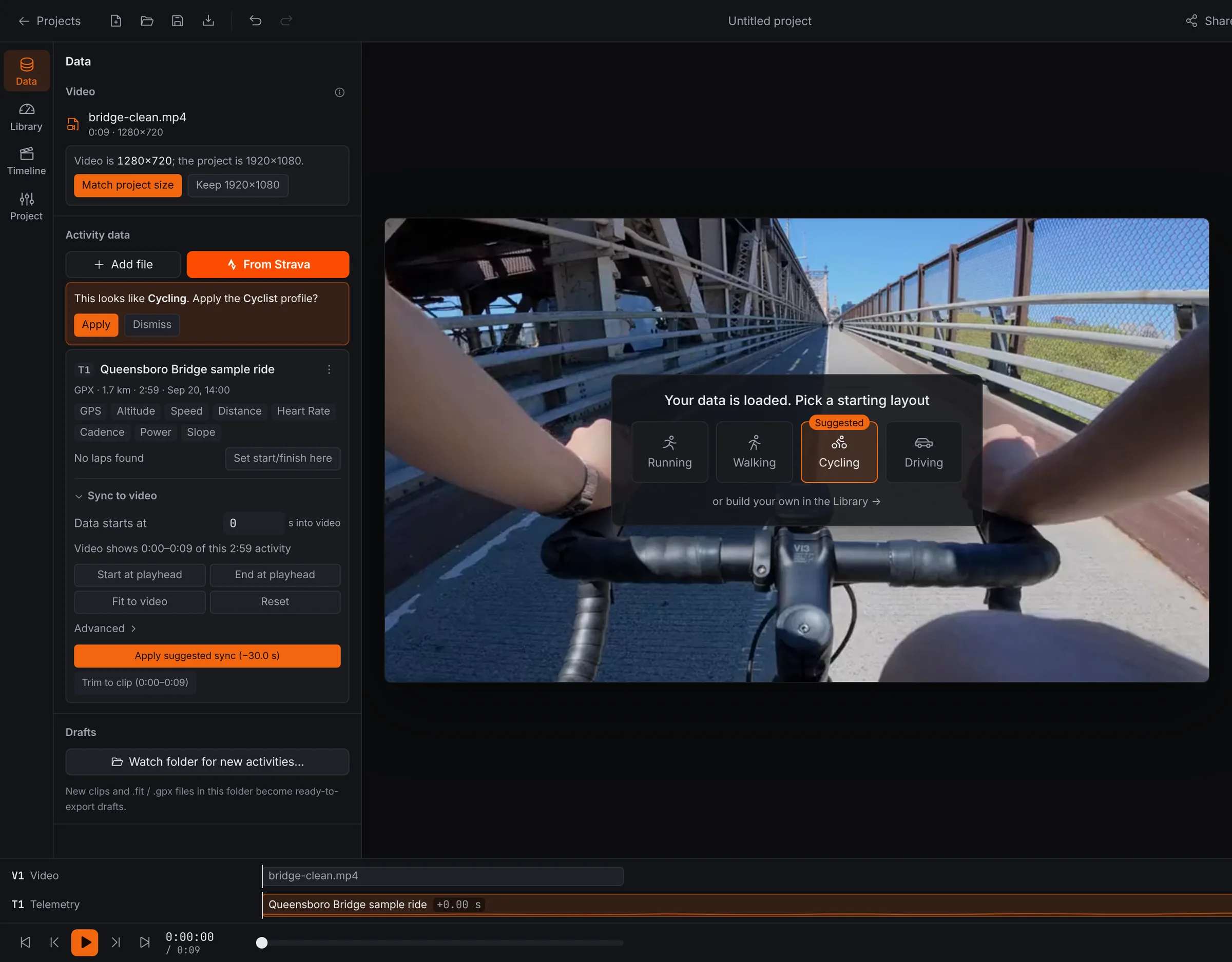
- Video added (1280×720 sample clip)
- Activity detected as cycling
- Channels found in the file
- Suggested sync from the video timestamp
- Pick a starting layout
- Video and telemetry on the timeline
-
Record an activity while you film. Start your watch, bike computer or phone app (Strava, Garmin Connect, Apple Workout) before you press record on the camera, and stop it afterwards. A one-second recording interval gives the smoothest gauges.
-
Export the activity file. From Garmin Connect, use Export Original to get the FIT file. From Strava, use Export GPX or Export Original. The Garmin guide and Strava guide show where those menus are.
-
Add the clip and the file to GaugeReel. Open the web editor or the desktop app, add the DJI MP4, then choose Activity file. GaugeReel reads speed, position, altitude, heart rate, cadence, power and temperature, whichever the file contains.
-
Line up the timing. GaugeReel suggests an offset from the clip’s recorded time. Check it against a moment you can see, such as pulling away from a stop, and nudge the data offset until the speed matches. Syncing GPS with video covers the tricks.
-
Choose gauges and export. Start from a layout, then export a transparent overlay for your editor, or burn the gauges into an MP4 on Basic.
DJI speed overlay for motorbikes and cars
Section titled “DJI speed overlay for motorbikes and cars”For track days, a phone or watch GPS records about once a second, which is fine for a speedometer but too coarse for braking points. A dedicated logger such as RaceBox or RaceChrono records 10 to 25 times a second, and GaugeReel imports its VBO or CSV files directly. That also drives g-force and, on Premium, lean angle gauges.
What GaugeReel doesn’t read from DJI
Section titled “What GaugeReel doesn’t read from DJI”- GPS stored by the DJI remote. Use DJI Mimo for that data, or a FIT/GPX file from another device.
- Drone SRT subtitle files and flight logs. GaugeReel can use drone footage as the picture, but not its flight data.
- Osmo 360 files before reframing. Reframe in DJI’s software first, then add the exported MP4.
More detail on camera support is on the DJI telemetry overlay page.
Frequently asked questions
Section titled “Frequently asked questions”Does the DJI Osmo Action have GPS?
Not built in. The Osmo Action 4, Osmo Action 5 Pro, Osmo Action 6 and Osmo 360 can log GPS through DJI's Osmo Action GPS Bluetooth Remote Controller, an accessory that records position and speed while it controls the camera. Older Osmo Action models have no GPS option.
How do I add a speed overlay to DJI Osmo Action footage?
Either record with the DJI GPS remote and add the dashboard in the DJI Mimo app, or record the ride on a watch, bike computer or phone at the same time and pair that FIT or GPX file with your footage in an overlay editor such as GaugeReel.
Can I get a GPS overlay on DJI footage without the GPS remote?
Yes. Any recorded activity with timestamps works: a Garmin, Wahoo or COROS FIT file, an Apple Watch workout exported to GPX, or a Strava track. Add it next to the clip in GaugeReel and line up the timing once.
Does GaugeReel read the DJI GPS remote's data?
No. GaugeReel doesn't read the GPS that the DJI remote stores with the footage. Use a FIT or GPX file from another device, or use DJI Mimo if you only need the built-in dashboard.
Can GaugeReel read DJI drone SRT or flight logs?
No. GaugeReel can use drone footage as the picture, but it doesn't read DJI SRT subtitle files or flight logs. Tools built for drone telemetry, such as Telemetry Overlay, are the better fit for that.
Add your ride data to DJI footage
The Free plan has no watermark and no time limit. Open the editor in your browser, or download it for Windows or macOS.