
GoPro GPS: which HERO models have it, and how to use it
Which GoPro cameras have GPS
Section titled “Which GoPro cameras have GPS”GoPro stores GPS, accelerometer and gyro readings in a hidden data track inside each MP4, a format called GPMF. Whether there is GPS in that track depends on the model:
| Camera | GPS in the video file | What to do |
|---|---|---|
| HERO13 Black | Yes (GPS9, includes date and time) | Import the original MP4 |
| HERO12 Black | No GPS receiver | Pair a GPX or FIT activity |
| HERO11 Black, HERO11 Black Mini | Yes (GPS5 and GPS9) | Import the original MP4 |
| HERO5 Black to HERO10 Black | Yes (GPS5) | Import the original MP4 |
| HERO (2024), Session models, HERO4 and older | No | Pair a GPX or FIT activity |
| MAX, MAX 2, Fusion | Yes, inside the 360 file | Reframe first, then pair a GPX or FIT activity |
GPS is only written when it is switched on in the camera’s preferences and the camera has found satellites. If you film indoors, in a tunnel or straight after power-on, the first seconds or the whole clip can be empty.
Ways to put GoPro GPS on your video
Section titled “Ways to put GoPro GPS on your video”GoPro’s own phone app can add GPS stickers, but only on the phone and only as part of a finished edit. If you edit on a computer, or you own a HERO12, you need a separate overlay tool.
| App | Runs on | Reads GPS from the MP4 | HERO12 with GPX or FIT | Transparent export | Price |
|---|---|---|---|---|---|
 GaugeReel | Windows, macOS, browser | Yes | Yes | Yes | Free; Basic $10/mo |
 GoPro Quik | iPhone, Android | Yes | No | No | Free app; subscription for more |
 Telemetry Overlay | Windows, macOS, Linux | Yes | Yes | Paid license only | $199 one-time |
 OVRLEY | Windows, macOS, Linux | Yes | Yes | Yes | Free, open source |
Prices and features checked on the vendors' sites between November 13 and 24, 2026. GaugeReel Free exports transparent PNG sequences and green-screen MP4; transparent ProRes 4444 and WebM need Basic.
How to add GoPro GPS gauges in GaugeReel
Section titled “How to add GoPro GPS gauges in GaugeReel”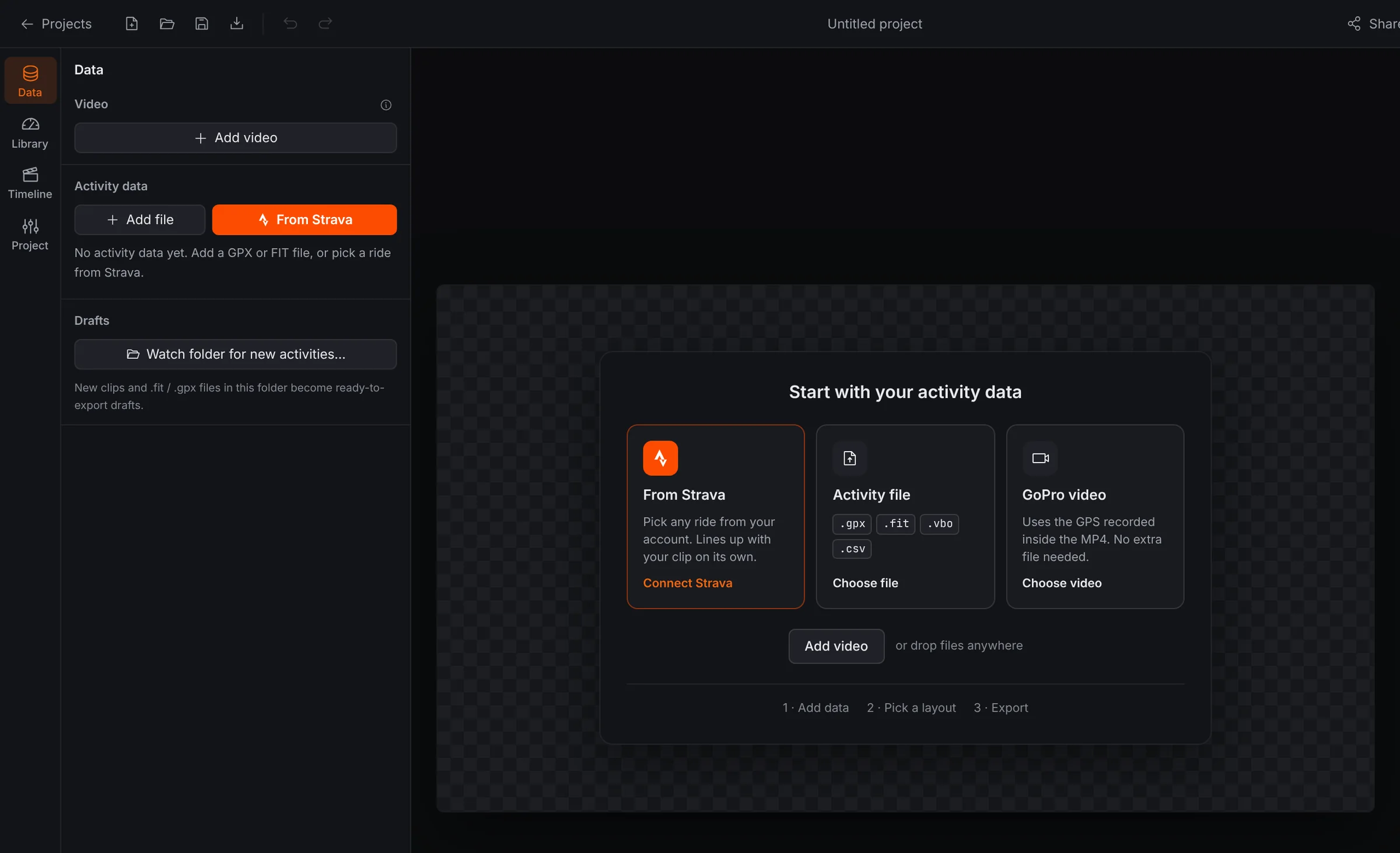
- Add a file or pick a ride from Strava
- From Strava: pick a ride, synced to your clip
- Activity file: GPX, FIT, VBO or CSV
- GoPro video: reads the GPS inside the MP4
- Add the video you want gauges on
-
Copy the original MP4 off the SD card. Clips exported from GoPro Quik or another editor often lose the hidden data track, so start from the file the camera wrote. Long recordings are split into chapters (GX010001, GX020001 and so on); each chapter has its own GPS.
-
Open the editor and choose GoPro video. Use the web editor in your browser or the desktop app on Windows or macOS. GaugeReel scans the file and lists the channels it found: speed, altitude, position, and the accelerometer and gyro.
-
Pick a starting layout. Bike, Run, Walk and Drive layouts place a speedometer, route map and other gauges for you. Drag gauges around, or search the library for more. The speedometer guide covers the styles.
-
Skip the syncing. GPS from the same file is already in step with the picture, so there is nothing to line up. You only need to sync when you add a separate GPX or FIT file.
-
Export. The Overlay tab exports the gauges alone, on a transparent background, to stack over your footage in DaVinci Resolve, Premiere Pro or Final Cut Pro. The Video tab burns the gauges into a finished MP4 (Basic). See transparent overlays by editor.
GoPro HERO12 Black: adding speed without GPS
Section titled “GoPro HERO12 Black: adding speed without GPS”GoPro removed the GPS receiver from the HERO12 Black, and no firmware update brings it back. The camera still records its accelerometer and gyro, but those can’t tell you speed or where you were.
The fix is to record the GPS on something else at the same time:
- A bike computer or sports watch (Garmin, Wahoo, COROS, Polar, Suunto) saves a FIT file with speed, heart rate, cadence and power. See Garmin data on video.
- Strava or another phone app records a GPX track. See Strava stats on video.
- A car or motorbike logger such as RaceBox or RaceChrono exports VBO or CSV files with 10 to 25 position readings a second.
Add the HERO12 clip and the activity file to GaugeReel, then line up the timing. The editor suggests a starting offset from the clip’s timestamp, and you fine-tune it against something you can see, like a stop or a turn.
One caveat for riders: a lean angle gauge calculated from a HERO12’s gyro reads low in long, steady corners, because there is no GPS speed to correct it. A logger file fixes that. The lean angle guide explains why.
GoPro HERO13 Black GPS
Section titled “GoPro HERO13 Black GPS”The HERO13 Black brought GPS back, and it writes a newer stream called GPS9. Each GPS9 reading carries its own date and time, which GaugeReel uses as the clip’s real start time. That makes it easier to line up a second data source, such as the heart rate from a watch.
If a HERO13 clip shows no GPS, check that GPS is on in the camera’s preferences and that it had a clear view of the sky. Forum threads disagree about what the status icons mean, so the reliable test is the file itself: drop the original MP4 into GaugeReel and see whether speed and position appear in the channel list.
When GoPro GPS is missing or wrong
Section titled “When GoPro GPS is missing or wrong”- “GPS only” or empty stickers in Quik: the clip has no usable GPS. Check the model, the GPS setting, and whether the camera had a fix when recording started.
- Speed jumps or the route zig-zags: low-quality GPS readings under trees, bridges or tall buildings. GaugeReel skips readings the camera marks as a poor fix, so a bad patch shows as a short gap rather than a spike.
- GPS disappears after editing: most editors don’t carry GPMF through an export. Make the overlay from the original clips, then cut it together with your footage.
- Times are off by hours: the camera’s clock or time zone is wrong. It doesn’t matter for GPS from the same file, but it does when you match an external activity.
GoPro Telemetry Extractor and other GoPro data tools
Section titled “GoPro Telemetry Extractor and other GoPro data tools”Telemetry Extractor is a separate data-conversion product from the makers of Telemetry Overlay: it exports GoPro telemetry to files such as CSV, GPX or KML for spreadsheets, maps and other tools. You only need that if you want the raw numbers. To make an overlay, GaugeReel reads the GPS, accelerometer and gyro from the MP4 directly, with no extraction step. For more on GoPro specifically, see the GoPro telemetry overlay page and the step-by-step GoPro tutorial.
Frequently asked questions
Section titled “Frequently asked questions”Does the GoPro HERO12 Black have GPS?
No. The HERO12 Black has no GPS receiver, so its videos carry no speed, location or route data. To add them, record the same ride on a phone, watch or bike computer and pair that GPX or FIT file with the clip.
Does the GoPro HERO13 Black have GPS?
Yes. GoPro brought GPS back on the HERO13 Black. It writes a newer GPS stream called GPS9 into the MP4, which GaugeReel reads directly, along with the camera's GPS clock.
Which GoPro cameras record GPS?
The HERO5 Black through the HERO11 Black, the HERO11 Black Mini and the HERO13 Black write GPS into the video file. The HERO12 Black, the entry-level HERO (2024), the Session models and the HERO4 and older do not. MAX, MAX 2 and Fusion record GPS inside their 360 files.
Why does my GoPro video show no GPS data?
The usual causes are GPS switched off in the camera's preferences, recording before the camera found satellites, using a trimmed or re-exported file instead of the original MP4, or a model without GPS such as the HERO12 Black. Import the original file from the SD card, and give the camera a minute outdoors before you press record.
What is GoPro Telemetry Extractor?
Telemetry Extractor is a data-conversion tool from the makers of Telemetry Overlay. It turns GoPro telemetry into files such as CSV, GPX or KML. You don't need to extract anything to make an overlay in GaugeReel: it reads the GPS, accelerometer and gyro straight from the MP4.
Can I show GoPro GPS speed for free?
Yes. GaugeReel Free reads GoPro GPS and exports speed, distance, altitude and a GPS route line with no watermark, up to 1080p at 30 fps, as a transparent PNG sequence or a green-screen MP4.
Put your GoPro GPS on screen
The Free plan has no watermark and no time limit. Open the editor in your browser, or download it for Windows or macOS.