
Insta360 GPS stats: add speed, heart rate and maps to Insta360 video
Where Insta360 GPS data comes from
Section titled “Where Insta360 GPS data comes from”| Source | Works with | What you get |
|---|---|---|
| Insta360 GPS Preview Remote or GPS Action Remote | X series, Ace Pro series | Speed, altitude, route, recorded with the clip |
| Garmin watch or bike computer (paired or Garmin Connect) | X series, Ace Pro series | GPS plus heart rate, cadence and power if recorded |
| Apple Watch | X series, Ace Pro series | GPS and heart rate |
| FIT or GPX file | Insta360 Studio 5.7.6+, Insta360 app | Whatever the file recorded |
Insta360’s manual also lists COROS and iGPSPORT as dashboard sources on recent cameras. The exact list depends on the camera and app version, so check the Stats Dashboard manual for yours.
Insta360 Studio or GaugeReel
Section titled “Insta360 Studio or GaugeReel”| App | Runs on | GPS remote data | FIT/GPX import | Stats as a separate layer | Price |
|---|---|---|---|---|---|
 Insta360 app | iPhone, Android | Yes | Yes | No | Free |
 Insta360 Studio | Windows, macOS | Yes | Yes (5.7.6+) | No | Free |
 GaugeReel | Windows, macOS, browser | Via a GPX exported from Studio | Yes | Yes | Free; Basic $10/mo |
Insta360 features from its online manual and Studio troubleshooting page, checked November 24, 2026.
Stay in Insta360’s software if you edit there and like the built-in dashboards. They are free and already synced to the clip.
GaugeReel is for a different job: you reframe in Studio, then edit in another program and want the gauges on their own track. That lets you move, restyle or time them after the cut is done, and use gauges Insta360 doesn’t offer, such as power zones, g-force or a 3D route.
How to make an Insta360 GPS overlay for your editor
Section titled “How to make an Insta360 GPS overlay for your editor”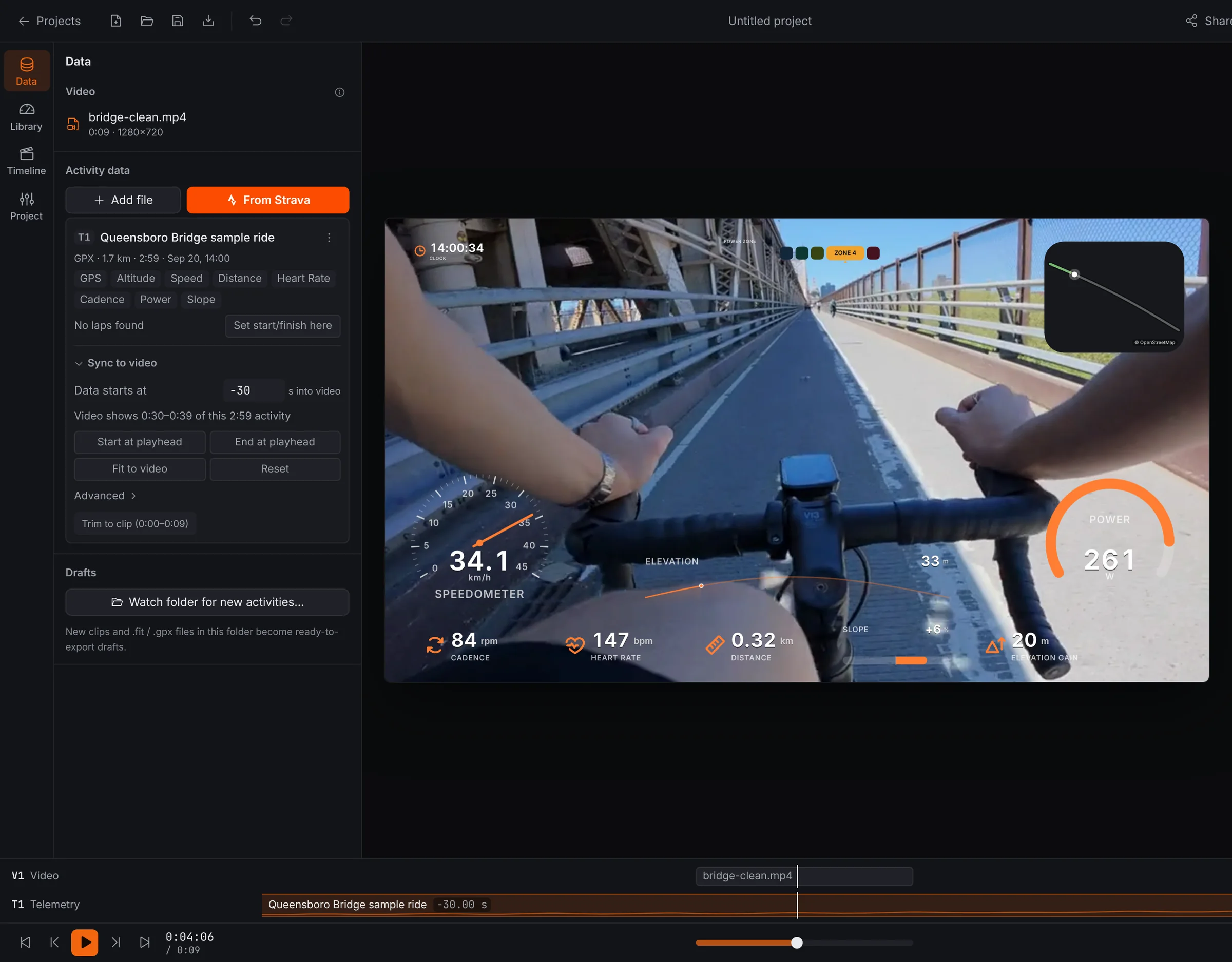
- Data offset: the track starts 30 s before the clip
- Speedometer, needle dial
- Heart rate, cadence and distance
- Power
- Heart rate zone
- GPS route map
-
Reframe and export the clip in Insta360 Studio. GaugeReel doesn’t open INSV files, so export a flat MP4 at the size and frame rate you’ll edit in.
-
Get the activity as a file. Export FIT from Garmin Connect, GPX from Strava, or use Studio’s own GPX export if the clip recorded GPS from the remote. Insta360’s GPS data page shows that option.
-
Add both to GaugeReel. Open the web editor or the desktop app, add the MP4, then choose Activity file.
-
Sync the data. The editor suggests an offset from the clip’s timestamp. Fine-tune it against a visible moment, as described in syncing GPS with video. If you sped up or slowed down the clip while reframing, export the gauges at normal speed and retime them in your editor alongside the footage.
-
Export a transparent overlay. Free exports a transparent PNG sequence or a green-screen MP4; Basic adds transparent ProRes 4444 and WebM. Then place it above the footage, as shown in transparent overlays by editor.
Common Insta360 GPS problems
Section titled “Common Insta360 GPS problems”- “Failed to add stats” in Studio: update Studio, then check that the activity covers the time of the clip. Insta360’s troubleshooting page lists the version requirements.
- The stats are off by an hour: the camera clock or time zone differs from the watch. Fix the camera clock for next time, and shift the data offset for this clip.
- No GPS from the remote: the remote has to be connected while recording, and it needs a few moments outdoors to find satellites.
For more on Insta360 cameras and supported files, see the Insta360 telemetry overlay page.
Frequently asked questions
Section titled “Frequently asked questions”How do I add GPS stats to Insta360 video?
Insta360's Stats Dashboard can take GPS from an Insta360 GPS remote, from a paired Garmin or Apple Watch, or from a FIT or GPX file you import. Open the clip in the Insta360 app or Insta360 Studio and add the dashboard. To use the stats in another editor, make them as a separate overlay in GaugeReel instead.
Why can't I add GPS data in Insta360 Studio?
Insta360's help pages say FIT and GPX import needs Insta360 Studio 5.7.6 or later, and the Garmin Connect link needs 5.8.6 or later. The activity also has to overlap the time the clip was recorded, so check the camera's clock and time zone.
Do Insta360 cameras have built-in GPS?
The X series and Ace Pro cameras get GPS from an accessory, the Insta360 GPS Preview Remote or GPS Action Remote, or from a paired watch or imported activity. Without one of those, there is no position or speed in the file.
Can GaugeReel open Insta360 INSV files?
No. Reframe or export the clip in Insta360 Studio first, then add the MP4 to GaugeReel together with a FIT or GPX activity. Studio can also export a GPX track from clips that recorded GPS.
Does the Insta360 Ace Pro 2 support a GPS overlay?
Yes. The Ace Pro 2 supports the Stats Dashboard with GPS from an Insta360 GPS remote, or with data from Garmin, Apple Watch, COROS, iGPSPORT or a FIT or GPX file, according to Insta360's manual.
Make your Insta360 stats editable
The Free plan has no watermark and no time limit. Open the editor in your browser, or download it for Windows or macOS.