
How to sync GPS data with video (GPX, FIT or GoPro)
Why GPS and video drift apart
Section titled “Why GPS and video drift apart”| Symptom | Usual cause | Fix |
|---|---|---|
| Off by exactly 1 hour (or several) | Camera saved local time, GPS file is UTC; or daylight saving | Suggested sync fixes whole hours; or shift by the difference |
| Off by a few seconds to minutes | Camera clock never set, or drifted | Line up a visible sync point |
| Right at the start, wrong later | Timelapse, hyperlapse or a speed ramp | Fit to video, or export at normal speed and retime in your editor |
| No overlap at all | Wrong activity, or wrong day on the camera | Check the dates; drag the track in the sync lanes |
| Jumps after a cut | Clips joined before the overlay was made | Make the overlay from each original clip |
Sync methods compared
Section titled “Sync methods compared”| Method | When to use | Accuracy |
|---|---|---|
| Same file (GoPro GPS) | The camera recorded its own GPS | Exact, nothing to do |
| Suggested sync from timestamps | Camera clock roughly right | Usually within a few seconds |
| Visible sync point | Always, as a final check | To a frame or two, with a sharp event |
| Fit to video | Timelapse covering a known start and end | Good if the clip starts and ends where the data does |
How to sync a GPX or FIT file in GaugeReel
Section titled “How to sync a GPX or FIT file in GaugeReel”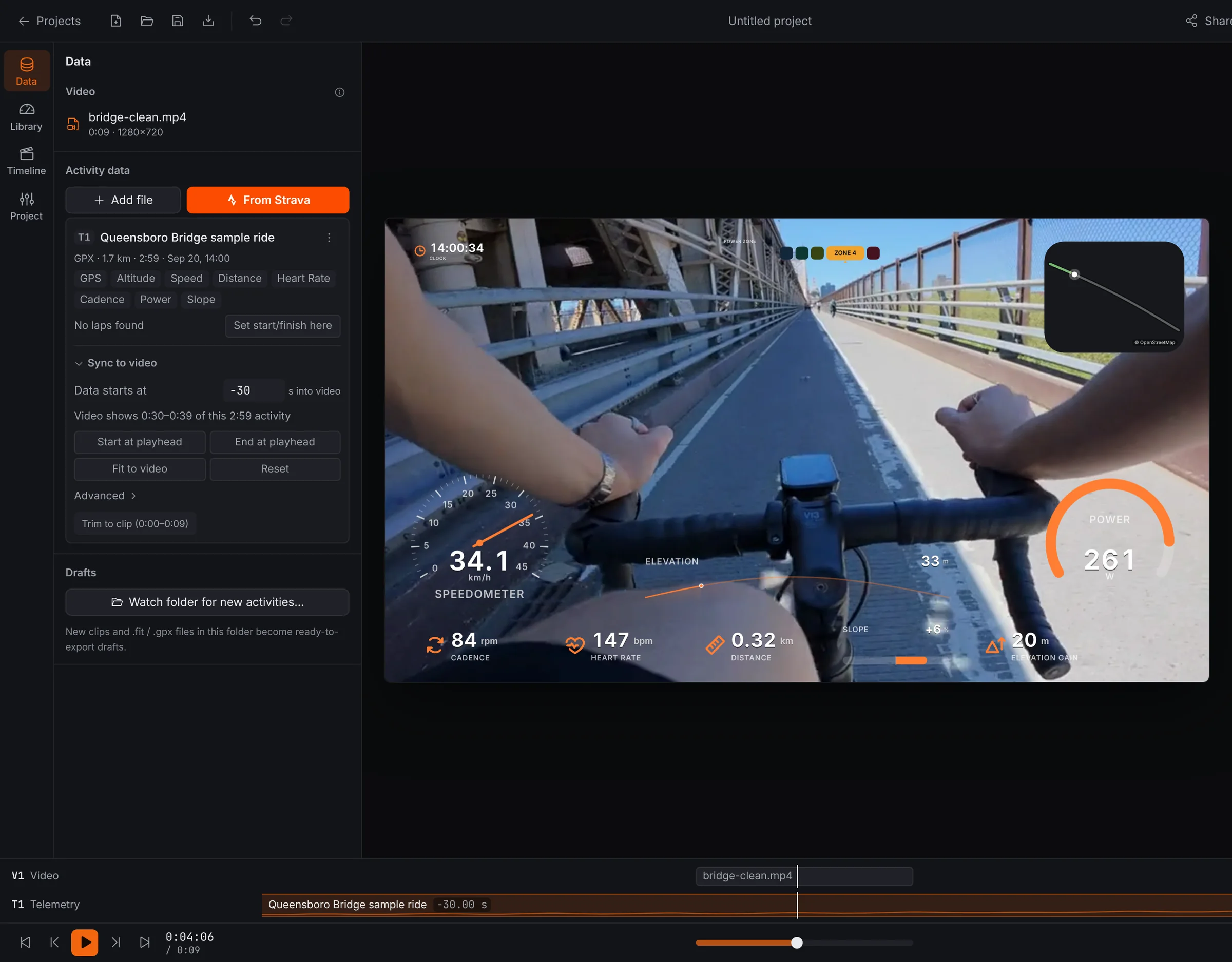
- Data offset: the track starts 30 s before the clip
- Speedometer, needle dial
- Heart rate, cadence and distance
- Power
- Heart rate zone
- GPS route map
-
Add the clip, then the activity. The order matters: GaugeReel reads the clip’s recorded time first, so it can compare it with the activity. Open the web editor or the desktop app.
-
Apply the suggested sync. If both files have usable times, GaugeReel offers a suggested offset. It prefers GoPro GPS time, which is true UTC, and falls back to the clock in the MP4, correcting whole-hour time zone differences.
-
Find a sync point. Scrub to a sudden event you can see: setting off, braking hard, a sharp turn, a jump. Pause there.
-
Adjust Data starts at. This is the number of seconds into the video at which the recording begins. A positive number means the recording started after the video. Change it in tenths of a second until the speed changes on the right frame. You can also drag the track in the sync lanes on the timeline. If you can see the moment the recording began, put the playhead there and use Start at playhead.
-
Check a second point. Jump to another event near the end of the clip. If it lines up too, you’re done. If it doesn’t, the clip is probably sped up; see the timelapse section below.
-
Trim to the clip (optional). If the activity is much longer than the video, trim the export to the part the clip covers.
Timelapses and hyperlapses
Section titled “Timelapses and hyperlapses”A hyperlapse turns ten minutes of riding into one minute of video, so the data has to be squeezed by the same factor. Fit to video stretches or squeezes the activity to span the whole clip. It only works if the clip starts and ends at the same moments as the data you want, so trim the activity first if needed. For speed ramps, where the speed changes partway through, export the gauges at normal speed and apply the same ramp to both layers in your editor.
Several data sources at once
Section titled “Several data sources at once”You can add more than one activity, such as GoPro GPS plus a Garmin FIT for heart rate. Each source has its own offset, and each gauge chooses its source. Sync each external source on its own; the GoPro’s own GPS stays put. See Garmin data on video.
Avoid sync trouble next time
Section titled “Avoid sync trouble next time”- Set the camera’s date, time and time zone before a trip, especially after a battery swap.
- Start your watch or bike computer before the camera, and stop it after.
- Film something obvious at the start, such as setting off from a standstill.
- Keep the original files. Trimmed or re-exported clips can lose their recorded time.
Frequently asked questions
Section titled “Frequently asked questions”How do I sync GPS data with a video?
Start from the times stored in both files, then fine-tune against something you can see. In GaugeReel, apply the suggested sync, scrub to a clear moment such as pulling away from a stop, and adjust Data starts at until the speed matches the picture. Check a second moment later in the clip.
Why is my GPS overlay off by exactly one hour?
The camera saved its local time while the GPS file uses UTC, or the camera's clock wasn't changed for daylight saving. GaugeReel's suggested sync corrects whole-hour differences automatically; otherwise shift the offset by the difference.
Does GoPro GPS need syncing?
No. GPS recorded by the GoPro itself is in the same file as the picture, so it is already in step. Syncing only matters when you add a separate GPX or FIT file, for example heart rate from a watch.
How do I sync GPS data with a timelapse or hyperlapse?
A timelapse squeezes minutes of activity into seconds of video. Use Fit to video in GaugeReel to stretch the data across the whole clip, as long as the clip covers the same stretch of the activity from start to end.
What's the best sync point?
A sudden change you can see and the data records: setting off from a standstill, braking to a stop, a sharp turn, or a jump. Gentle cruising is the hardest to sync because the speed barely changes.
Sync your track in a few clicks
The Free plan has no watermark and no time limit. Open the editor in your browser, or download it for Windows or macOS.