
How to put Garmin data on video: FIT file to video overlay
What’s in a Garmin FIT file
Section titled “What’s in a Garmin FIT file”A FIT file is the activity exactly as your watch or bike computer recorded it, usually one reading per second. GaugeReel reads these fields from it:
| Field | Gauge | Notes |
|---|---|---|
| Speed | Speedometer, pace | Uses Garmin’s enhanced speed when present |
| Position | GPS route map, distance, location | Needs a GPS-recorded activity, not an indoor ride |
| Altitude | Altitude, elevation profile, gain, slope | Barometric altitude if your device has it |
| Heart rate | Heart rate, heart rate zones | Needs a chest strap or wrist sensor during the activity |
| Power | Power, power zones | Needs a power meter |
| Cadence | Cadence | Bike cadence sensor, or run cadence from the watch |
| Temperature | Temperature | Device sensor |
If a field wasn’t recorded, its gauge shows no data. Nothing is invented from the video.
Garmin data overlay tools compared
Section titled “Garmin data overlay tools compared”| App | Status | Reads FIT | Footage from any camera | Transparent export | Price |
|---|---|---|---|---|---|
 GaugeReel | Active | Yes | Yes | Yes | Free; Basic $10/mo |
 Garmin VIRB Edit | Last release 2018 | Yes | Yes | PNG overlays | Free |
 Insta360 Studio | Active | Yes (5.7.6+) | Insta360 only | No | Free |
 Telemetry Overlay | Active | Yes | Yes | Paid license only | $199 one-time |
Checked November 13 to 24, 2026. VIRB Edit's last published version is 5.4.3.
How to export a FIT file from Garmin Connect
Section titled “How to export a FIT file from Garmin Connect”-
Open the activity on the Garmin Connect website. Sign in at connect.garmin.com on a computer and open the ride, run or drive you filmed.
-
Click the gear icon and choose Export Original. It sits at the top right of the activity page. You get a ZIP file.
-
Unzip it. The file ending in .fit is your activity. Keep it next to the video.
You can also copy FIT files straight off many Garmin devices over USB, from the GARMIN/Activity folder. If the activity synced to Strava, Strava’s Export Original gives you the same FIT file.
How to put the FIT data on your video
Section titled “How to put the FIT data on your video”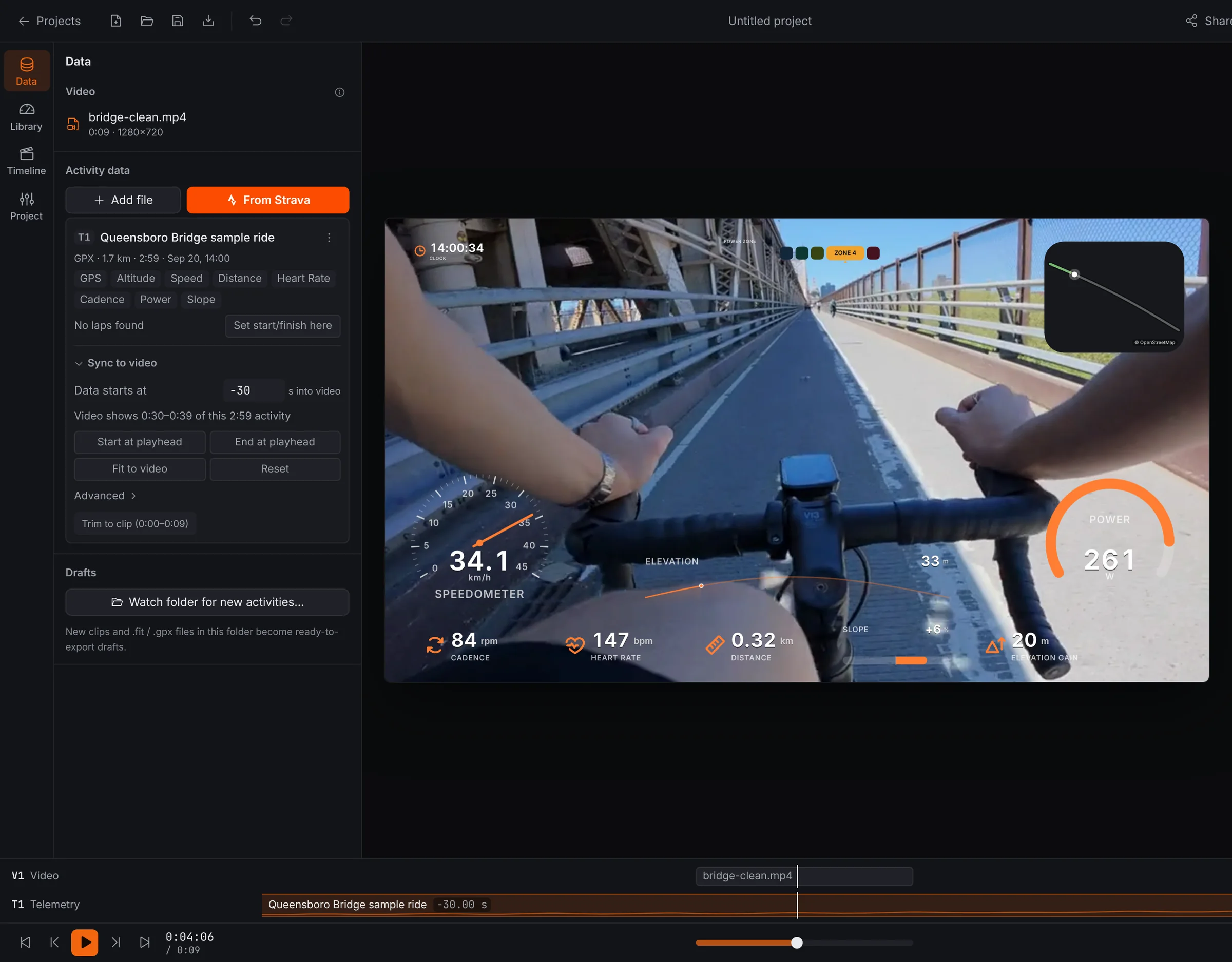
- Data offset: the track starts 30 s before the clip
- Speedometer, needle dial
- Heart rate, cadence and distance
- Power
- Heart rate zone
- GPS route map
-
Add your clip. Open the web editor or the desktop app and add the video you want gauges on.
-
Choose Activity file and pick the .fit. GaugeReel detects the sport and lists the channels it found, so you can see straight away whether heart rate or power came through.
-
Check the sync. The editor suggests an offset from the clip’s timestamp. Scrub to a moment you can see, like setting off from a junction, and nudge the data offset until the speedometer moves with the picture. See syncing GPS with video.
-
Pick a layout and adjust gauges. The Bike and Run layouts place speed, heart rate, power, cadence and a route map. Click any gauge to change its style, units and colours.
-
Export. Use the Overlay tab for a transparent layer to stack in your editor, or the Video tab to burn the gauges into an MP4 on Basic.
Garmin data on GoPro video
Section titled “Garmin data on GoPro video”If your GoPro recorded its own GPS, you have two data sources. That’s fine: add both, and choose the source for each gauge. A common setup is GoPro GPS for speed and the route, because it is already in sync, and the Garmin file for heart rate, cadence and power. A HERO12 Black has no GPS, so the Garmin file drives everything; see GoPro GPS by model.
Is Garmin VIRB Edit still worth using?
Section titled “Is Garmin VIRB Edit still worth using?”Garmin VIRB Edit was Garmin’s free editor for exactly this job, and it still reads FIT files. Garmin’s last published release is 5.4.3, from 2018, so newer cameras, codecs and operating systems are a gamble. If it still runs for you, it’s a fine free option. If it doesn’t, the DashWare and VIRB Edit guide covers what replaced it, and the VIRB Edit alternative page compares them feature by feature.
For Garmin-specific tips, see the Garmin video overlay page.
Frequently asked questions
Section titled “Frequently asked questions”How do I overlay Garmin data on a video?
Export the activity's original FIT file from Garmin Connect, add it to an overlay editor such as GaugeReel together with your clip, line up the timing, and export the gauges as a transparent layer or burned into the video.
How do I export a FIT file from Garmin Connect?
On the Garmin Connect website, open the activity, click the gear icon at the top right and choose Export Original. You get a ZIP file; the .fit file inside it is the one to use.
Which Garmin data can GaugeReel show?
Speed, position and route, altitude, distance, heart rate, cadence, power and temperature, when the activity recorded them. Fields Garmin keeps elsewhere, such as laps, gear changes or developer fields from Connect IQ apps, are not read.
Can I put Garmin data on GoPro video?
Yes. Add the GoPro clip and the FIT file. If the GoPro recorded its own GPS, you can use it for speed and route and the Garmin file for heart rate and power; each gauge picks its data source.
Is Garmin VIRB Edit still available?
Garmin still lists VIRB Edit for download, but the last published release is version 5.4.3 from 2018. It still opens FIT files, but it isn't being updated.
Can I add Garmin heart rate to video for free?
Yes. FIT import and the speed, heart rate, cadence, power and altitude gauges are on GaugeReel's Free plan, with no watermark, up to 1080p at 30 fps. Heart rate zones and map basemaps need Basic.
Put your Garmin activity on screen
The Free plan has no watermark and no time limit. Open the editor in your browser, or download it for Windows or macOS.